
Events page contains the Security Alerts (Events) generated by all the Honeypots’ Detection Engines.
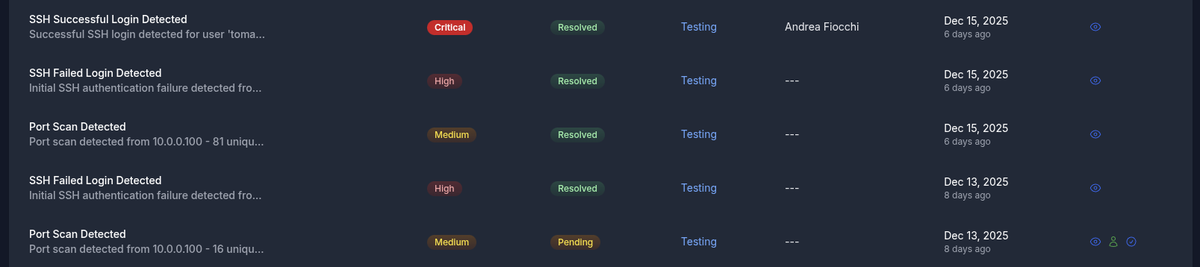
Anatomy of an Event
Events are composed of multiple fields:
- Title defines the type of Event, for example a Bruteforce Attack on the Honeypot.
- Description describes what happened and gives information, such as the source IP.
- Severity defines the risk level of an Event.
- Status marks the current stage in the Event’s lifecycle.
- Device shows the name of the Honeypot that generated the Event.
- Handler is assigned using the collaboration utilities and is meant to optimize teamwork.
- Created at shows the time of creation, both as an absolute date and as time elapsed.
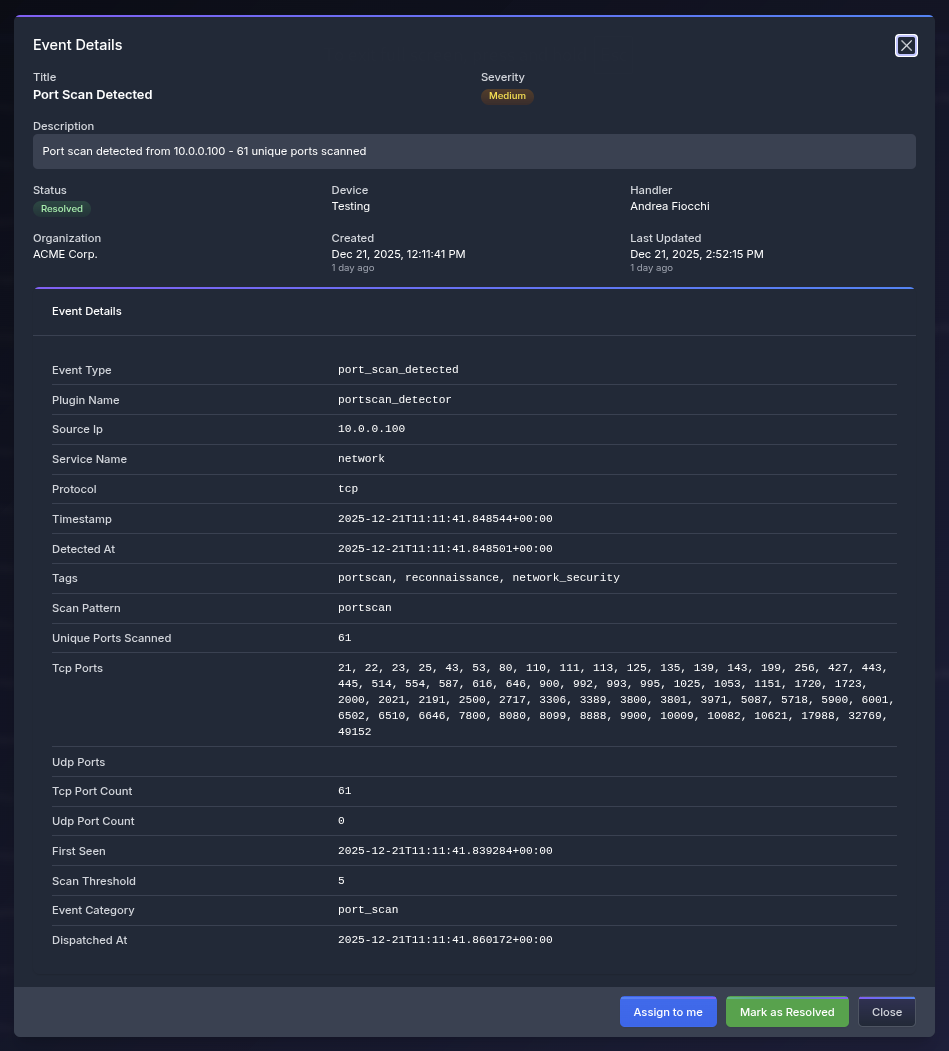
When opening the detail modal of an Event, further technical information is set by the Detection Engine when enriching and correlating.
Understanding Severity
Severity defines the likelihood of an event being malicious and is determined by the Detection Engine.
Hoxey doesn’t follow the classic ranking because Honeypots, being traps, behave differently. What could be an Info/Low level event like an SSH access on a SIEM, it’s Critical on Honeypots.
The levels and their relative meaning in this context are:
- Info is not a security alert but a system message coming from the Engine.
- Low doesn’t signal an intrusion, but it’s worth knowing in a broader context when higher alerts are firing.
- Medium is at network level and not necessarily only directed at the Honeypot. They should be taken seriously and triaged. A good example is a port scan that could be coming from a legitimate security system.
- High is directed at the Honeypot and marks malicious activity, the margin of error is very small.
- Critical alerts signal activity inside the Honeypot. It’s a dead giveaway of an intrusion.
INFO: With our ranking system the threshold to seriously triage and investigate is at Medium severity.
Collaboration utilities
Collaboration utilities are tools used by Team Members to quickly signal to each other their current activity on Events in order to avoid repeating work done by others.
They can be completely ignored, but in a complex environment where multiple individuals monitor the system they can save precious time in case of attack.
They can be used in the quick actions section of the Events listing or in each specific detail modal.
The “Assign to me” button automatically marks the Event’s status as “In Progress” and the Team Member is set as the “Handler”. This signals others that the handler is triaging the Event.
“Mark as resolved” is self explanatory.
Event Lifecycle
The Status of an Event defines its current stage in the lifecycle.
When an Event is received, it is first passed through Filters before appearing on the Events page.
- Filtered means the event has been matched by a Filter and should be ignored, unless there’s strong correlation with other Medium or higher severity Events.
- Pending means the Event is yet to be resolved or taken care of. Depending on the severity it can be ignored.
- In Progress indicates that a Team Member has taken charge of the Event and is handling it. It is automatically set when the “Assign to me” button is clicked.
- Resolved is set by a Team Member and marks that the triage of the Event is complete.
- Expired is automatically set by the system for Pending and In Progress events after 15 days.