
From the Honeypots page, you can fully manage your devices.
As explained in the architecture documentation, the devices in your network act as transparent, one-way L3 proxies towards the Hoxey infrastructure. In this page, you can manage how this happens.
Managing Honeypots
In the main section, there is a list of the devices and their current status. For each, you can see:
- Name, a custom assigned name of the device, for easier identification.
- VM Image, the current template the device is set to use, in other words, what fake server is set to impersonate.
- Status defines the current behavior of the device:
- Active/Inactive defines whether the device is or is not online and able to reach our servers.
- Suspended means the device has been manually disabled by Hoxey privileged staff.
- Pairing Status defines the current health of the pairing with the assigned VM. The lifecycle is:
- Terminated, the device does not have an active pairing.
- Pairing, the device has requested a pairing and is waiting for the Orchestrator to answer.
- Paired, the device is successfully paired and working as expected. It should always be in this status.
- Unhealthy, the device is able to reach the Orchestrator, but it is reporting the VM as unreachable. If this status persists, it is automatically set back to Terminated and the lifecycle starts over.
- Event Sync is a consistency check on the device–orchestrator–dashboard capability to communicate. It should always have a checkmark.
- Last Seen reports the time elapsed from the last time the device reached our servers. After a set amount of time, the device Status is set to Inactive.
As usual in the UI, there are the applicable actions: View, Edit, and shortcuts to VM Init Script and Destroy VM.

In the Edit modal, you can fully manage the device by changing the name, the VM Image Template, the Region, and the Device MAC Address, as well as perform special operations such as destroying the VM, editing the Init Script, and regenerating the Event ID.
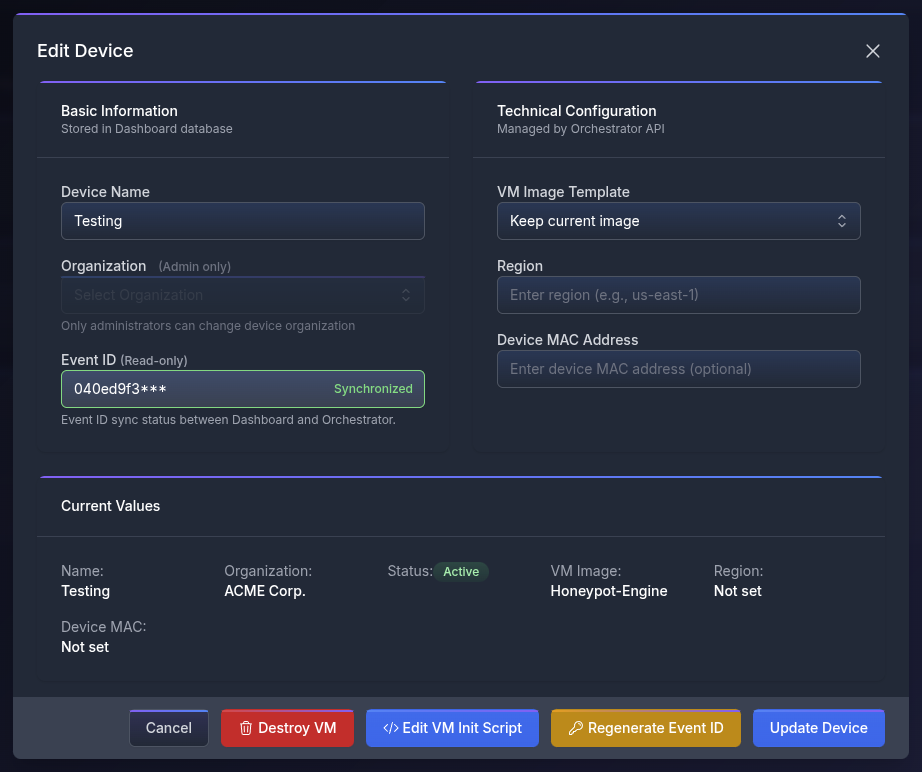
Destroy VM
This button requests the destruction of the currently paired VM.
As per previous specifications, this forces the device to request a new VM. This action is necessary when a parameter is changed, for example the VM Image Template, the Device MAC, or the VM Init Script.
Think about destroying the VM as a hard reboot, but be aware that the VM is ephemeral and therefore it’s no longer possible to perform forensic analysis on the disk once destroyed.
After VM destruction, the device gets a new one after about 30 seconds.
Edit VM Init Script
This feature allows you to fully customise the device. The most common uses are:
- Creating custom files and users matching your internal infrastructure and patterns.
- Installing further services on the device to enhance the deception capabilities.
- Installing third-party agents (such as SIEM collectors) and/or forwarding syslog elsewhere.
- Injecting management accounts to enter and inspect the VM (read the TOS).
The scripting language used is the default in the template’s Operating System (usually bash) and is executed with root privileges. There is a limit of 10,000 characters, but nothing prevents the script from pulling further code from third-party sources.
Some actions are forbidden. As a rule of thumb, the VM computing power can NOT be used for other purposes. Use common sense or refer to the TOS.
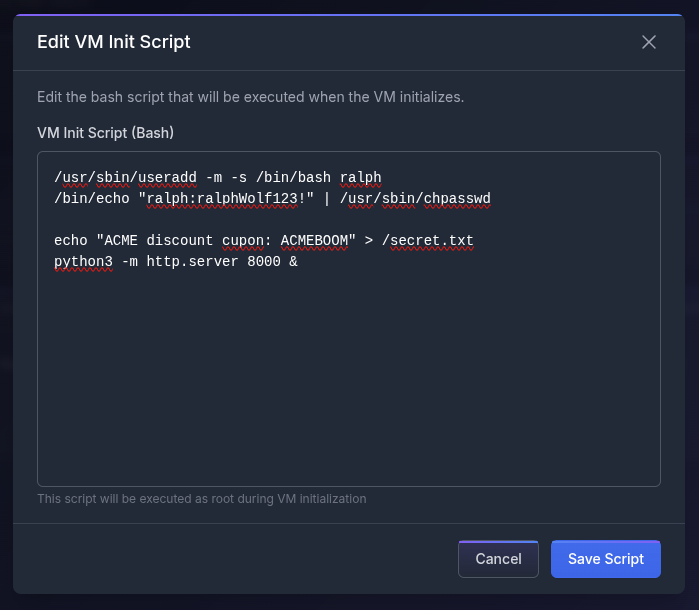
WARNING: in case of compromise, the attacker can read the VM Init Script. Do NOT put secrets in it.
Regenerate Event ID
The Event ID is an authentication and authorization token used to synchronize the Device, Orchestrator, and Dashboard. It is, for example, used to fetch the VM Init Script and send security alerts.
In case of compromise, an attacker can retrieve the token and use it to craft fake events and disrupt the service. We strongly recommend regenerating the Event ID after an attack to the honeypot.
Device MAC Address
While completely optional, this field is used to ask the device to change its own MAC address (MAC spoofing).
MAC addresses are unique and assigned by the hardware manufacturer. They are used at Networking Layer 2 and therefore are the only information available to an attacker the VM can't fake.
Seeing a micro board MAC address on an Enterprise Backup Server can raise the eyebrows of an expert intruder.
It's therefore recommended to match a credible MAC address to the chosen template.
A MAC Address is composed of 6 bytes of information, represented in hexadecimal, each separated by colons. For example: 1A:2B:3C:4D:5E:6F.
The first 3 bytes are the OUI (1A:2B:3C) and identify the vendor. They are reserved by the Institute of Electrical and Electronics Engineers (standard IEEE 802), while the last 3 (4D:5E:6F) identify the device’s NIC and are assigned by the vendor.
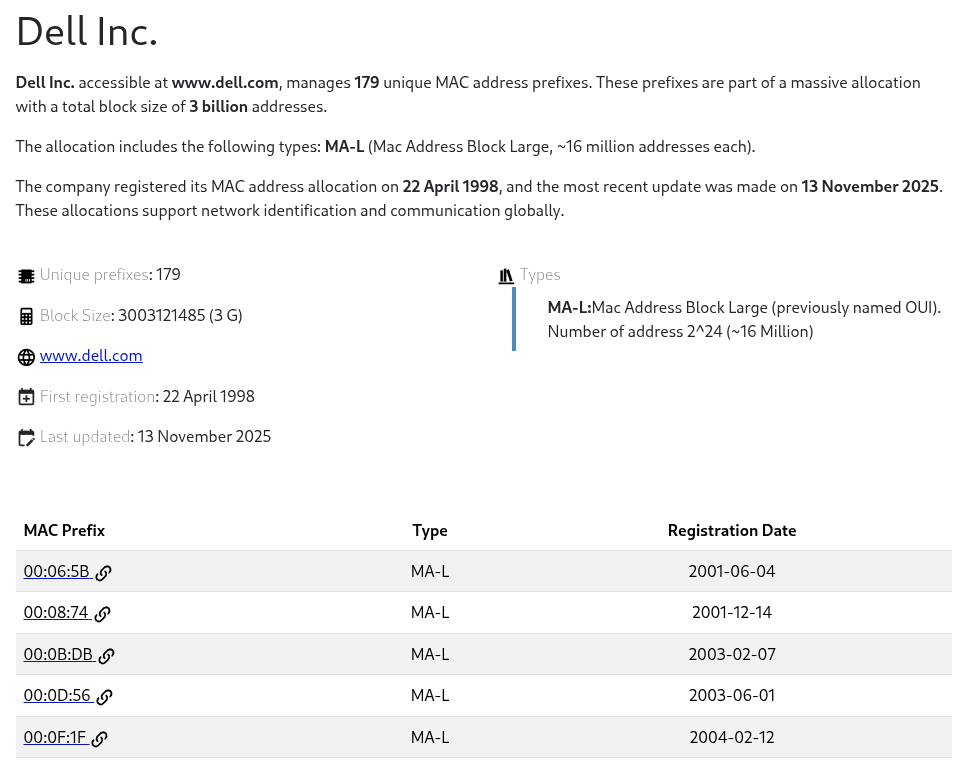
If you don’t know what to do, look up the desired vendor, copy the first 3 bytes, and add 3 more randomly.
The last 3 should be any two digits spanning from 0 to 9 or from A to F, separated by colons.12:34:56 is validA1:B2:C3 is validAA:BB:CC is validG1:H2:I3 is NOT valid because G, H, and I do NOT represent hexadecimal values (only A, B, C, D, E, F).
INFO: You can open a ticket at any time for help!
WARNING: A MAC conflict (two devices sharing the same MAC in the same network) causes temporary issues. The chances of this happening are astronomically low; we still recommend verifying the chosen MAC is available. In case of problems, simply change the Hoxey device’s MAC and destroy the VM to apply the change.
NOTE: We do NOT ship devices with pre-spoofed MAC addresses for two reasons:
- A proper, believable MAC depends on the template, and we don’t know which template will be used.
- We legally cannot spoof another vendor’s reserved MAC in a network we do not own or control without authorization. You are fully allowed to arbitrarily change MAC addresses in your network at will, or authorize us to do so.